How to Avoid Bundled Programs When Installing a Torrent Client
Download the Installer From the Official Source First
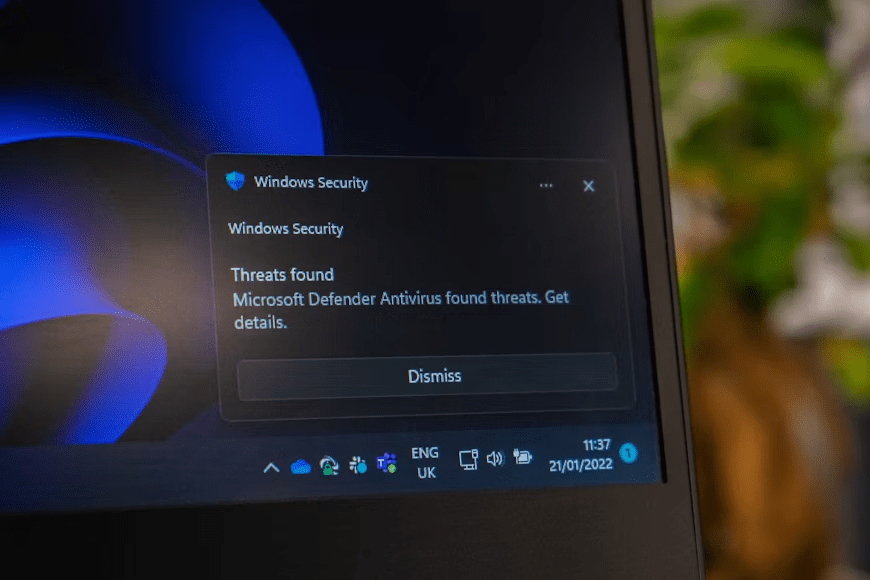
The safest installation begins before you even open the setup file. Where you download a torrent client often matters just as much as how you install it.
Whenever possible, download the installer directly from the project’s official website instead of software download portals or file-sharing websites. Third-party download sites sometimes wrap the original installer inside their own download manager or redistribute outdated versions that include additional promotional offers. Even when the torrent client itself is legitimate, the installer you receive may not be identical to the version published by the developer.
If the official website provides release notes, digital signatures, or checksums, they can help verify that the downloaded file has not been modified. While many home users never perform this step, it can provide additional confidence when downloading software from the internet.
Portable versions are another option for some torrent clients. Because they usually run without a traditional installation process, they may reduce the chance of encountering bundled offers. However, a portable version is only as trustworthy as its source. Downloading a portable package from an unknown website simply replaces one risk with another.
Slow Down During Installation Instead of Clicking Next
Most bundled software is accepted during the installation process, not after it. The installer often assumes users will click Next, Accept, or Continue repeatedly without reading each screen.
Whenever the installer offers multiple installation modes, avoid options such as Express, Quick, or Recommended. These settings frequently apply the default configuration, which may include additional software or changes to browser settings.
Selecting Custom or Advanced installation gives you more visibility into what the installer plans to do. Instead of immediately continuing, read every screen carefully. If the installer offers to add another application, change your default search engine, install a browser extension, or enable promotional software, decline those options unless you specifically want them.
One common mistake is assuming that the first declined offer is the only one. Some installers display multiple promotional pages throughout the setup process. After refusing one offer, users often begin clicking through the remaining screens quickly, only to accept another bundled program near the end of the installation.
Small details also deserve attention. A checkbox that is already selected, a lightly colored decline button, or wording that encourages a “recommended” setup may all be designed to make the default choice appear easier. Taking a few extra seconds to read each page is usually enough to avoid these situations.
Recognize Offers That Are Unrelated to the Torrent Client
You do not need to memorize the names of every bundled application because they change regularly. Instead, focus on a simple question:
Does this program help the torrent client perform its main job?
If the answer is no, there is usually little reason to install it during the same setup.
Many bundled offers fall into familiar categories. They may promote browser extensions, shopping assistants, VPN trials, password managers, PC optimization utilities, antivirus trials, search tools, or applications that promise to improve browsing performance. Some of these programs are legitimate products, but that does not mean they belong on every computer.
The wording can also make these offers appear more important than they really are. Messages such as “Improve your browsing experience,” “Recommended for better performance,” or “Protect your PC” often describe optional software rather than features required by the torrent client.
Instead of focusing on marketing language, look at the actual program being offered. If it performs an unrelated function, declining the installation is usually the simplest choice. Even if you later decide you want that software, downloading it directly from its own official website is generally a safer approach than installing it through a bundled offer.
Review Your System After Installation
Even if you carefully read every installation screen, spending another minute reviewing your system after the installation finishes is a good habit. It helps confirm that only the software you intended to install was added.
Start by opening the list of installed applications and checking whether anything unfamiliar appeared alongside the torrent client. If you notice a browser utility, system cleaner, or another application that you did not knowingly approve, remove it before using it.
Next, open your web browser and review a few basic settings. Some bundled programs change the default search engine, replace the home page, or install browser extensions without making those changes obvious during installation. Removing unfamiliar extensions and restoring your preferred browser settings can prevent unnecessary advertisements or unwanted redirects later.
It is also worth checking whether any new programs have been added to the system startup list. Applications that automatically launch every time your computer starts can slow boot times and continue running even if you never use them. Disabling or uninstalling software you do not recognize helps keep your system clean and reduces background resource usage.
If your browser suddenly begins displaying unexpected advertisements, redirects search results, or behaves differently after installing a torrent client, scanning your computer with a reputable security tool that detects Potentially Unwanted Programs (PUPs) can help identify software that should be removed. These tools focus on programs that may not be classified as malware but can still affect performance or modify browser behavior.
Torrent Clients With Cleaner Installation Methods
Not every torrent client follows the same distribution model. Some projects rely on community support, donations, or open-source development instead of generating revenue through bundled software. As a result, their installers are generally simpler and contain fewer promotional offers.
Clients such as qBittorrent and Transmission are widely known for providing clean installers through their official websites. Their focus is on delivering the application itself rather than encouraging users to install additional products during setup. This approach has made them popular choices among users who prefer a straightforward installation experience.
Other torrent clients may display advertisements inside the application or include optional partner offers in their free versions. That does not automatically make them unsafe, but it does mean users should pay closer attention throughout the installation process. Reading each installation screen carefully becomes even more important when using software that relies on advertising or promotional partnerships.
Regardless of which torrent client you choose, the same principle applies: download it from the official project website whenever possible. How to Use Hash Values to Check Whether Officially Distributed Files Have Been Modified can provide an additional verification step when the publisher publishes a checksum for the installer, helping confirm that the downloaded file matches the officially distributed version.
Keeping your torrent client up to date is equally important. Updates downloaded through the application’s built-in updater or the official website are generally safer than replacing the program with installers from unknown sources.
Installing software safely is rarely about finding a perfect torrent client. It is about combining a trustworthy download source with careful installation habits.
Avoiding bundled programs does not require advanced technical knowledge or special software. In most cases, downloading the installer from the official source, reading every installation screen carefully, and spending a few minutes reviewing your system afterward are enough to prevent unwanted applications from being installed. Those simple habits protect your computer far more effectively than rushing through the setup process, allowing you to use your preferred torrent client without filling your system with software you never intended to install.